Mobile video editing has come a long way. Today, you no longer need a powerful computer or expensive software to create eye-catching visuals. One app that truly stands out in this space is VN Video Editor. It offers professional-level tools while keeping the interface simple and beginner-friendly.
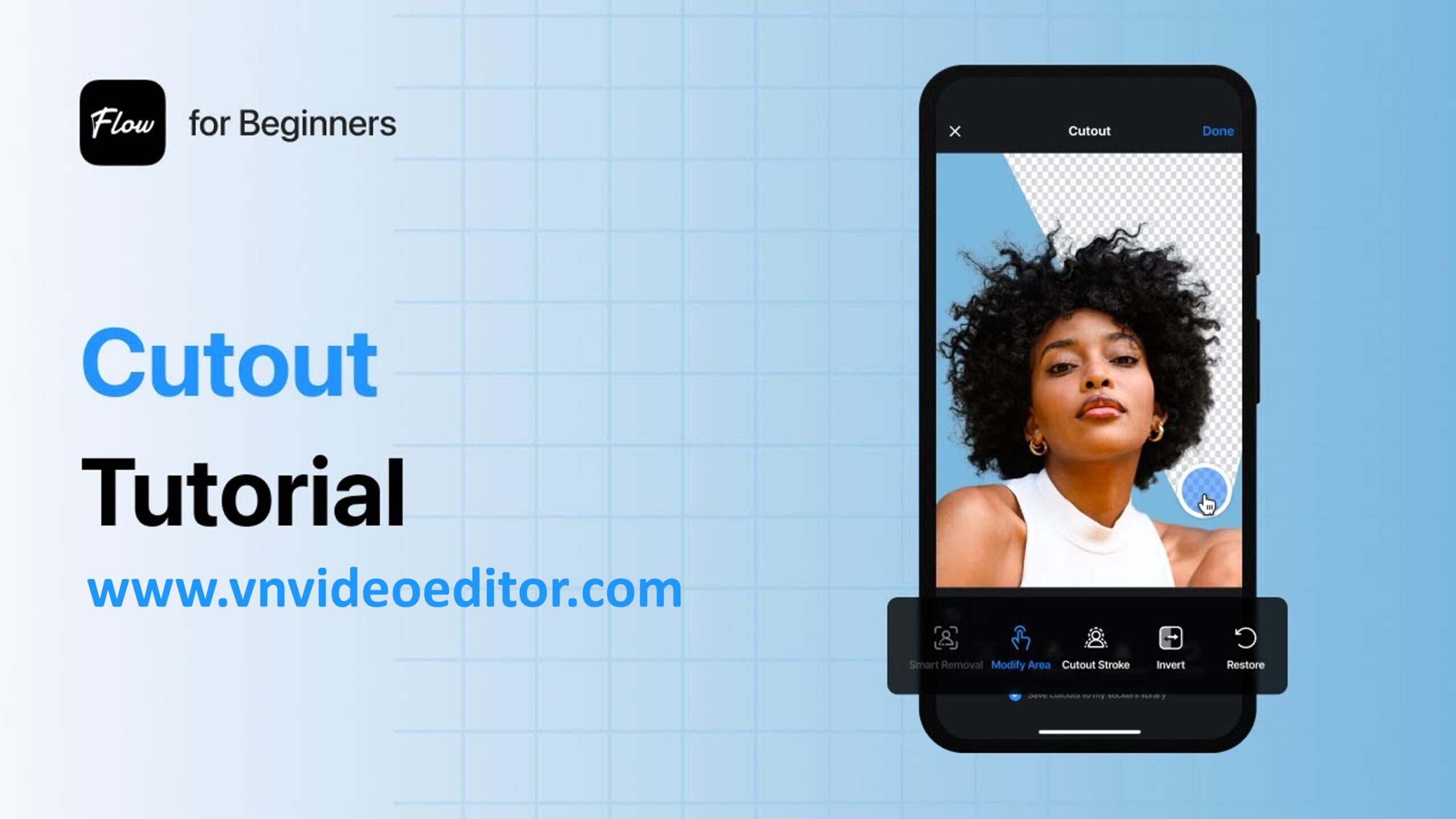
Whether you create short videos for TikTok, long-form content for YouTube, or cinematic travel reels for social media, VN Video Editor gives you everything you need. One feature that many creators love the most is the Cutout tool.
Not long ago, removing a background from a video meant using a green screen, advanced editing software, and hours of manual work. Now, VN Video Editor lets you do the same thing directly on your smartphone, often with just a few taps.
In this beginner tutorial, you will learn how to use the Cutout feature step by step. We will go through the tools, explain how they work, and share creative ideas to help your videos stand out.
What Is the Cutout Tool?
Before jumping into editing, it helps to understand what the Cutout tool actually does. Simply put, the Cutout tool separates the subject from the background. The subject can be a person, a pet, or even an object.
VN Video Editor offers two main ways to achieve this:
Chroma Key
This method removes a specific color from your video, usually green or blue. It works best when you record your footage using a green screen.
Auto Cutout
This method uses AI to intelligently detect a human subject and remove the background automatically. You do not need a green screen for this option.
Both methods are useful in different situations. This guide covers both, so you can choose the best option for your footage.
Step-by-Step: How to Remove Backgrounds in VN
Let’s walk through the process of creating your first cutout effect.
Step 1: Set Up Your Project
Think of video editing as working with layers. The bottom layer is your background, and the top layer is your subject.
- Open VN Video Editor.
- Tap the New Project button (the blue plus icon).
- Import your background video or image. This could be a city clip, an abstract animation, or a simple solid color.
- Tap the blue arrow to open the timeline.
Your background now sits on the main video track.
Step 2: Add Your Subject Overlay
To use the Cutout tool, your subject must be added as an Overlay.
- Tap Tap to add sticker/PIP above the main video track.
- Select Video/Photo.
- Choose the clip that contains your subject.
- Resize and reposition the overlay to fit the screen.
Once added, your subject appears on top of the background.
Step 3: Using the Cutout Tool (Two Methods)
Tap the overlay clip so it shows a yellow border. Scroll through the bottom toolbar until you find the cutout options.
Method A: Chroma Key (Best for Green Screens)
If your footage uses a solid color background:
- Select Chroma from the toolbar.
- A color picker circle appears on the screen.
- Drag the circle onto the green or blue color you want to remove.
- Adjust the Intensity slider to control how much color disappears.
- Use the Spill slider to remove color reflections on skin or clothes.
- Tap the checkmark to apply changes.
This method works best with evenly lit green screens.
Method B: Auto Cutout (Best for Normal Footage)
If you recorded in a room, outdoors, or any normal environment:
- Select Cutout from the toolbar.
- Tap Remove Background.
- Wait for the processing circle to finish.
VN’s AI scans the video frame by frame to detect the human shape. This method works best when lighting is good and the subject is clear.
Step 4: Refining the Edge
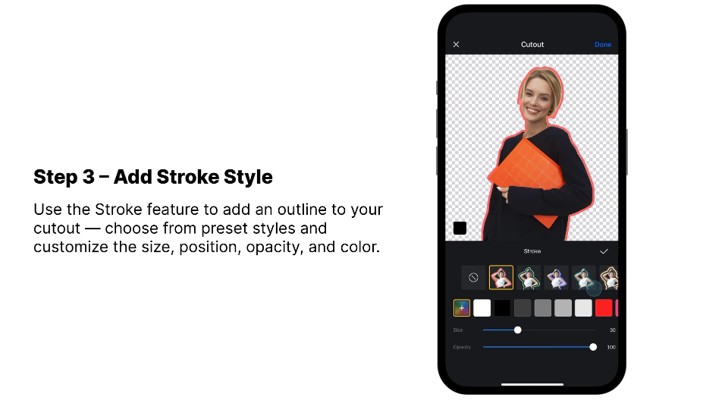
Sometimes the cutout edges may look rough. VN Video Editor gives you ways to fix that.
- Look for Stroke options inside the Cutout menu.
- Adding a thin outline around your subject can hide small imperfections.
- White, neon, or glowing strokes are popular styles.
- For a realistic look, avoid strokes and use feathering tools if available in your app version.
Small adjustments here can make your cutout look professional.
3 Creative Ideas for Your Cutout Visuals
Now that you know the technical steps, let’s explore how to use the Cutout tool creatively.
1. The Teleportation Effect
This effect is perfect for travel videos.
Filming:
Film yourself jumping in one location. Then film another jump at a different location.
Editing:
Use the Cutout tool on the first clip. Add a map or flying plane as the background. As you land, cut to the second clip. It looks like you jumped across locations instantly.
2. The Clone Technique
Want to appear twice in one frame?
Filming:
Place your camera on a tripod. Record yourself on one side of the frame. Then switch sides and record again.
Editing:
Import one clip as the main track. Add the second clip as an overlay. Use the Cutout tool to remove the empty space. Both versions of you appear together.
3. Text Behind Object Effect
This effect gives a cinematic, professional feel.
Setup:
- Main Track: Original video
- Overlay 1: Text title
- Overlay 2: Copy of original video
Apply Cutout to Overlay 2. The subject appears in front of the text, while the background stays behind it.
Pro Tips for Better Cutouts
If your cutout does not look clean, check these points:
1. Lighting Is King
Good lighting helps the AI detect edges clearly. Make sure your subject stands out from the background.
2. Keep It Steady
Shaky footage makes background removal harder. Use a tripod when possible.
3. Watch Your Clothing
Do not wear green when using Chroma Key. Avoid clothes that blend into the background.
Conclusion: Unleash Your Creativity
The Cutout feature in VN Video Editor makes advanced visual effects accessible to everyone. You no longer need a studio setup or expensive tools to create impressive videos.
Start simple. Remove a background and experiment with different scenes. As you gain confidence, combine effects to tell powerful visual stories.
All you need is your phone, VN Video Editor, and your creativity.
Happy Editing! 🎬